Project Status Tracking and Reporting Tool
  • Status Reporting
  • KPI Radar
  • Strategic Foresight
  • Pricing
  • Resources
    • Blog
    • Product release
    • White Paper
    • Help Center

Contact us

Try it free
Project Status Tracking and Reporting Tool
  • Status Reporting
  • KPI Radar
  • Strategic Foresight
  • Pricing
  • About us
  • Resources
    • Blog
    • Product Release
    • White Paper
    • Help Center
  • Join Radar Team
  • Contact us
  • Try it free

Help Center

Quick Start

4
  • Radar overview
  • How to create a workspace?
  • How to set a workspace name?
  • What access levels / user roles are there?

Account Settings

4
  • How can I change the email address associated with my account?
  • How to reset my password?
  • How can I manage email notifications?
  • How can I delete my account?

Billing and Subscriptions

5
  • Where can I find information about the end date of my subscription?
  • How can I find out if I have reached my project limit in my workspace?
  • How can I know if my subscription has expired?
  • Where can I find information about my payments?
  • What payment options are available?

Fields and Configuration

4
  • What is a field? 
  • How to create a field
  • Field actions
  • Templates

Projects

8
  • How can I filter project data?
  • How to manage project-level permissions?
  • How to export the project list and project data?
  • How to add a project manually?
  • Everything on project connections
  • How to add a project by importing data from Excel?
  • How to add a project by importing data from Jira?
  • How to edit a project?

Views

5
  • What views are available?
  • How to create a view
  • How to share a view
  • How to copy a view?
  • How to delete a view?

Customization

3
  • Can I customize the Radar view?
  • Can I customize the tenant’s logo?
  • Can I change the preview image on the login screen?

Users

5
  • Invite new users to your workspace
  • How to edit a user
  • How to deactivate and delete users
  • Roles and permissions
  • How to create a user group

Status Reporting

2
  • Project status reporting
  • How to schedule and automate report releases?

Strategic Foresight

9
  • What is strategic foresight?
  • How to enable voting?
  • How to add voting results to a view?
  • How to estimate project parameters with a community?
  • How to view project parameters estimation results?
  • How to switch on iterating through signals using wizard?
  • How to make a view accessible to all workspace users?
  • How to share the common registration link?
  • How to participate in strategic foresight?

Chats and Notifications

2
  • How to use chats in Radar?
  • How to use notifications in Radar?
  • Home
  • Help center
  • Chats and Notifications
  • How to use chats in Radar?
View Categories

How to use chats in Radar?

Chats in Radar allow you to communicate with colleagues directly within the context of a Radar report, eliminating the need for external messengers or copying screens.

There are three types of chats available:

1. View Chat
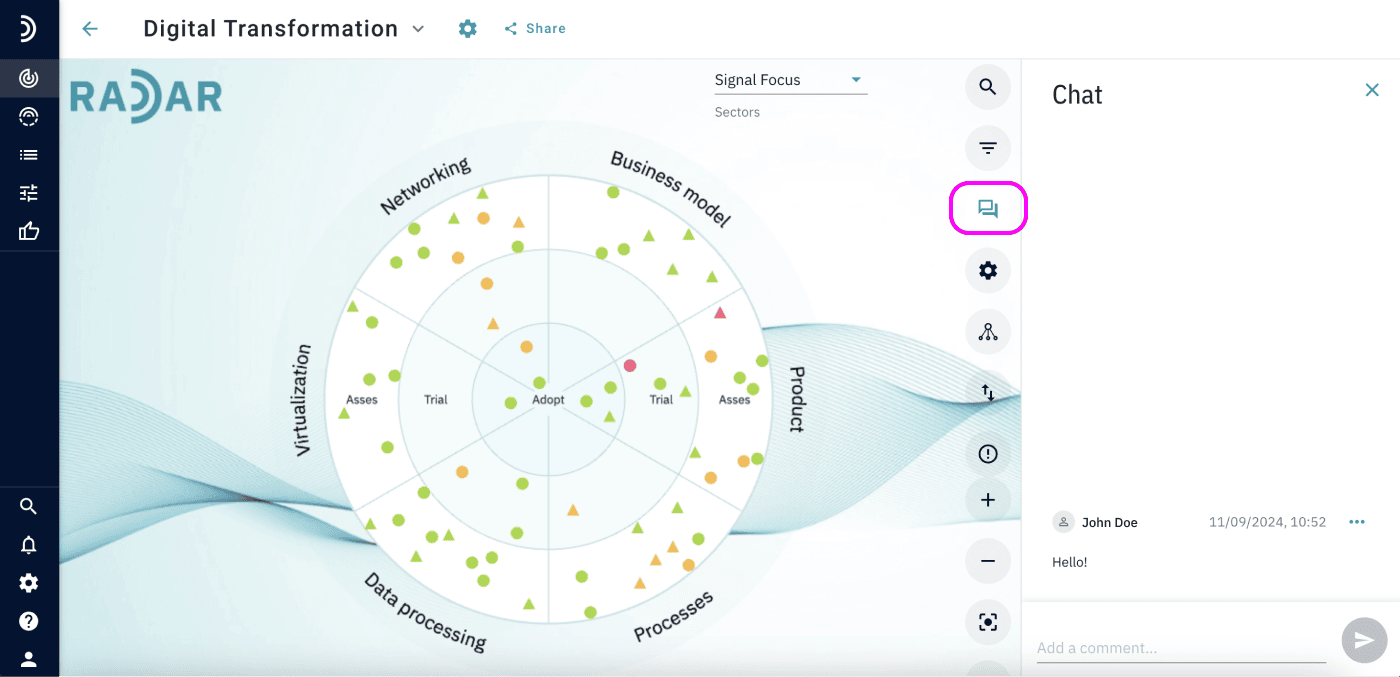
View chats enable you to send messages to all Radar users with access to a specific view. This is useful for reminders, updates, or sharing decisions.

To access the view chat, click on the “Chat” icon in any view.

2. Project Chat in a View
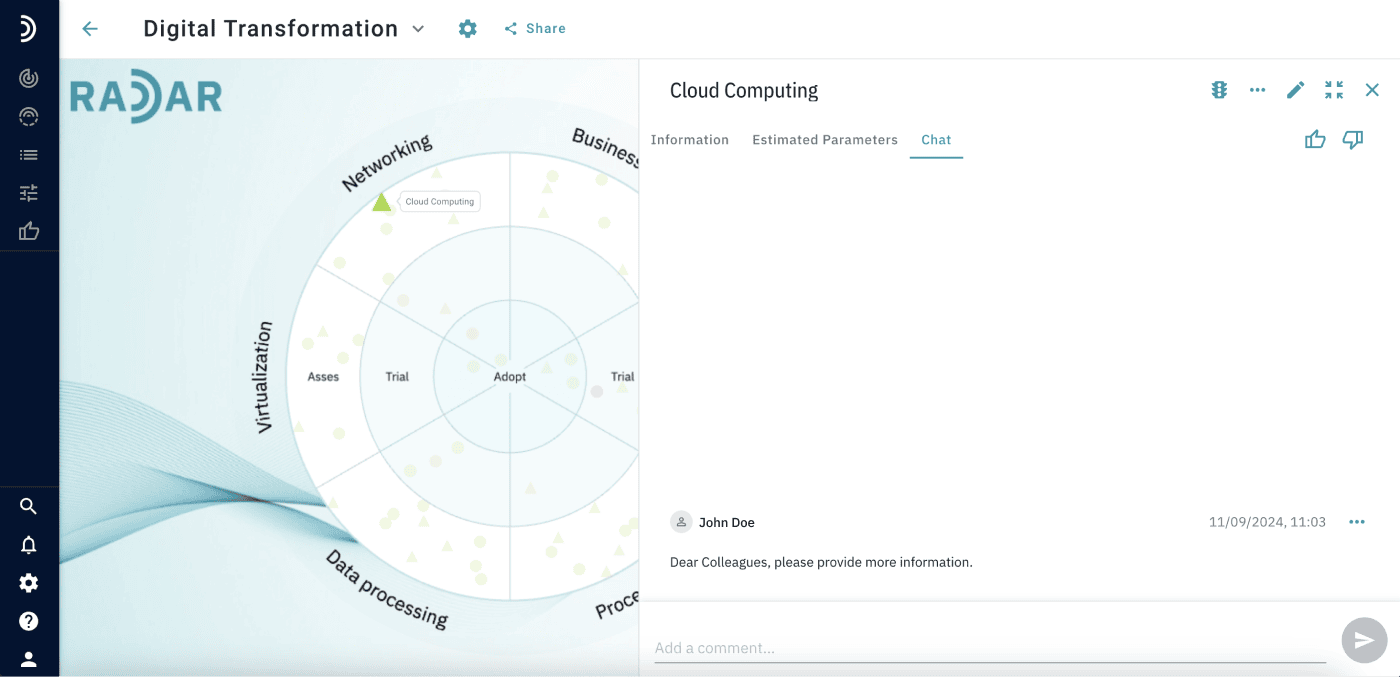
Project chats let you discuss specific projects within the context of a Radar report. Use it to ask questions, request more information, or collaborate with colleagues.

To enable project chats in a view:

1. Open the view in Edit mode.
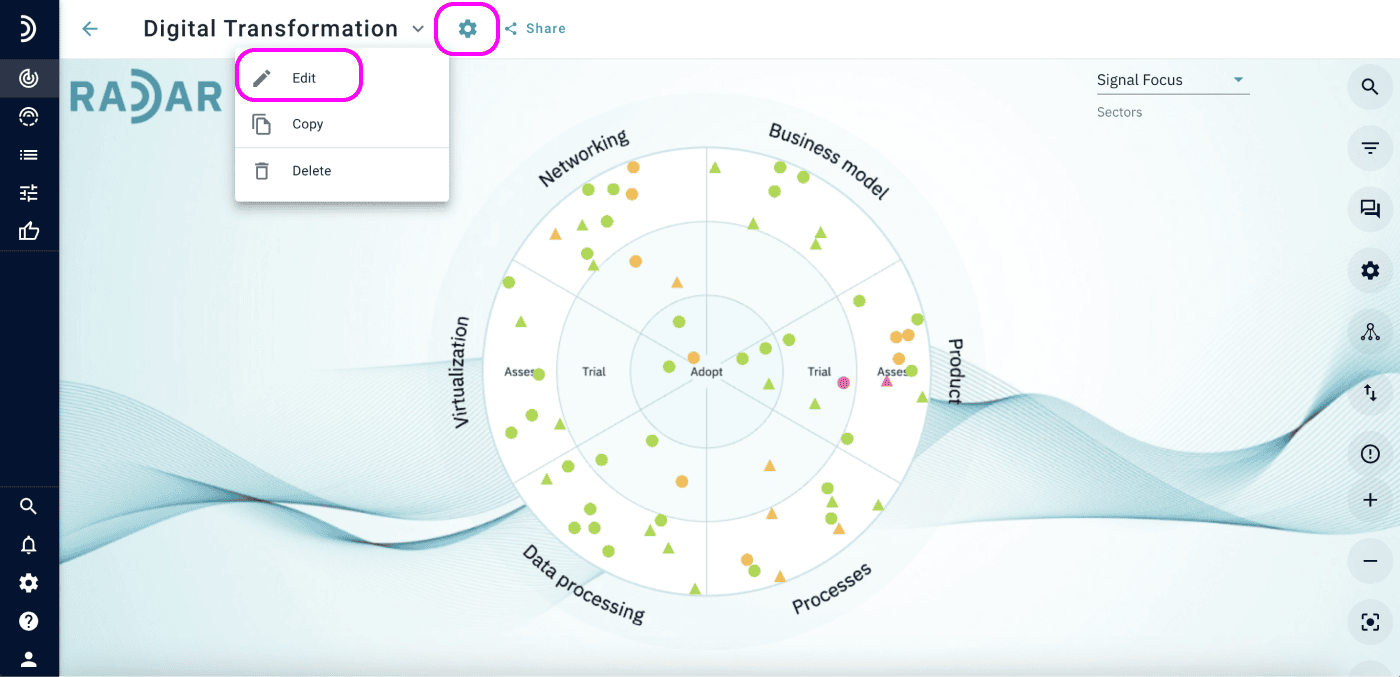
2. Go to the “Report Layout” section.
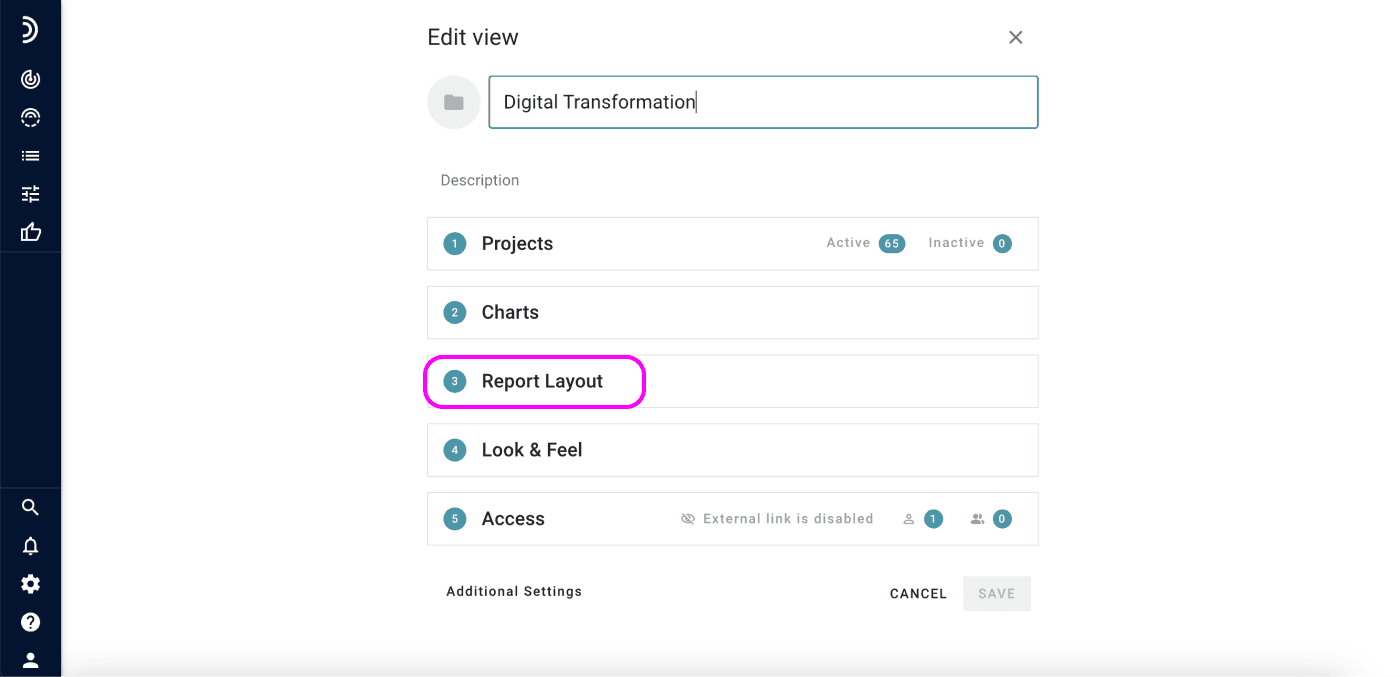
3. Add a new tab and select the “Chat tab” option (only one chat tab per report layout).
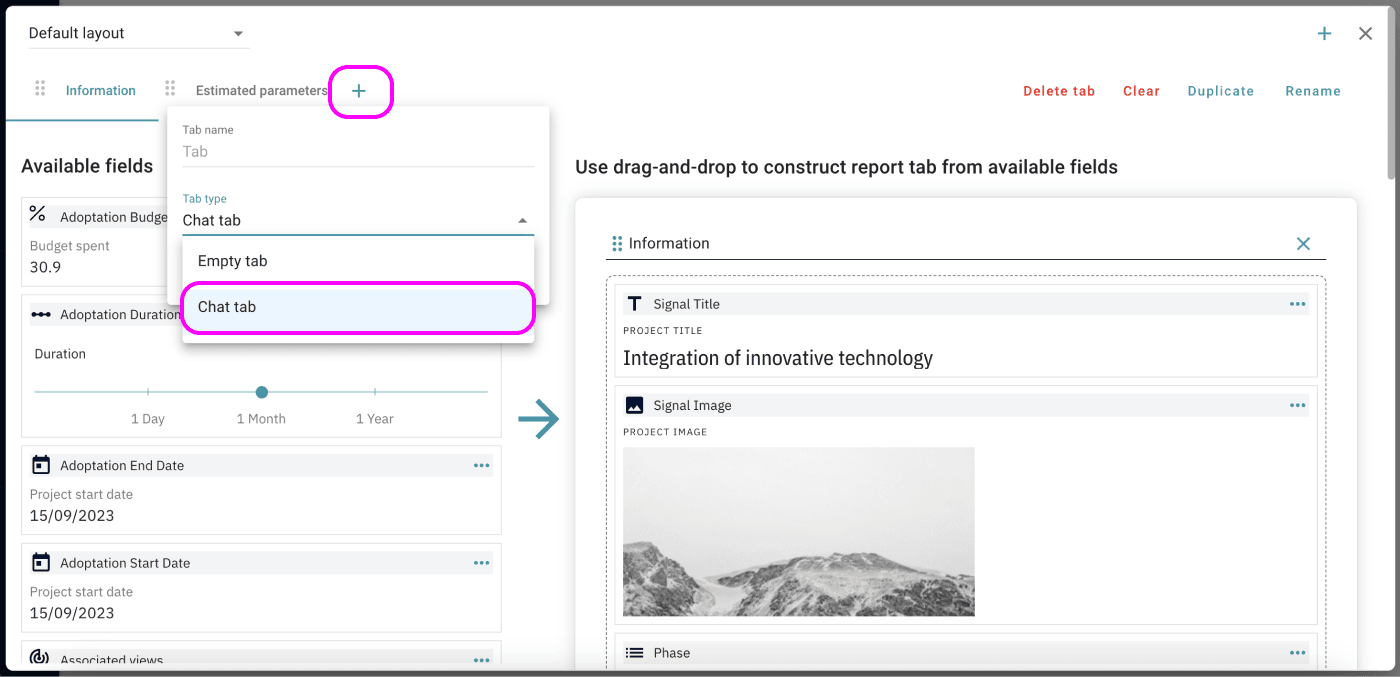
4. Save your changes.

You’ll now see the Chat tab in the project report within that view.

Important: Project chat messages are only visible within the specific view. If the same project appears in multiple views, chats in each view are separate, allowing for project discussions in different contexts.

3. Project Chat Outside of a View
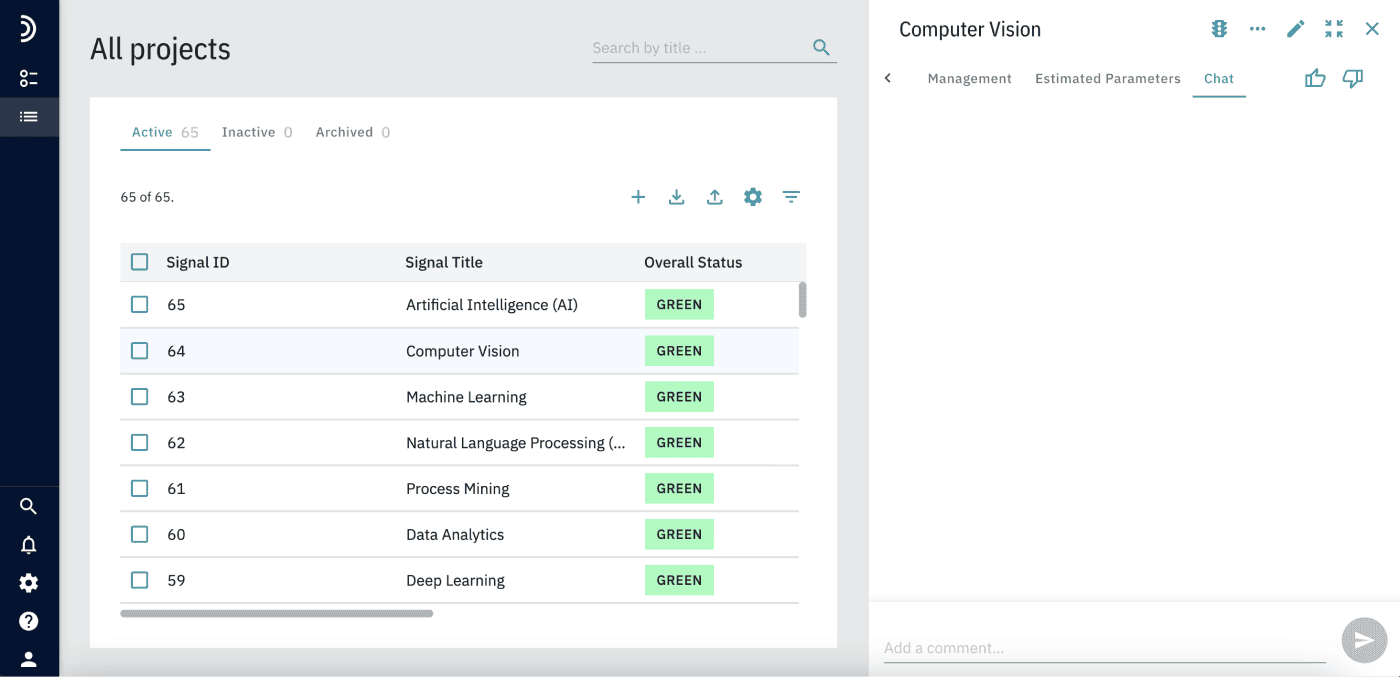
If you need to comment on a project outside of a view context, use the chat in Overview > All Projects. This is useful for adding data or information that should only be visible to project managers.

To enable project chats outside of views:

1. Open the Control Center.
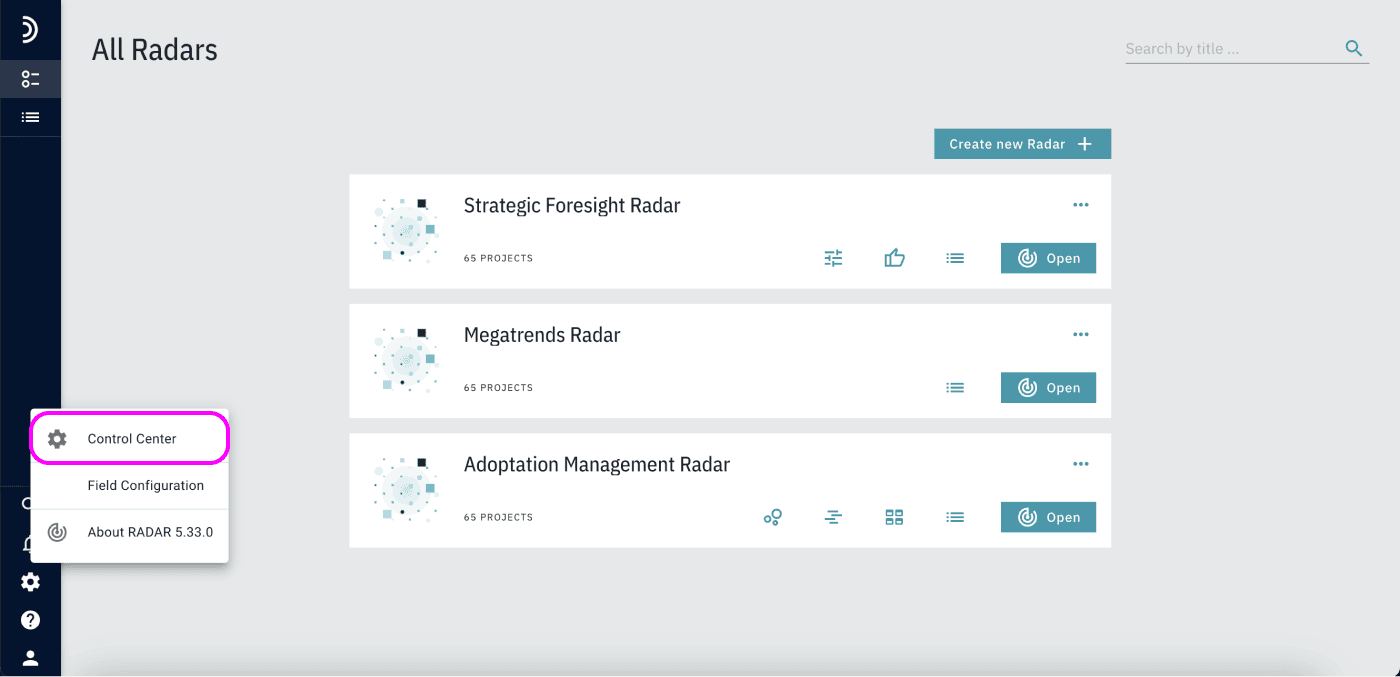
2. Edit Default View Settings.
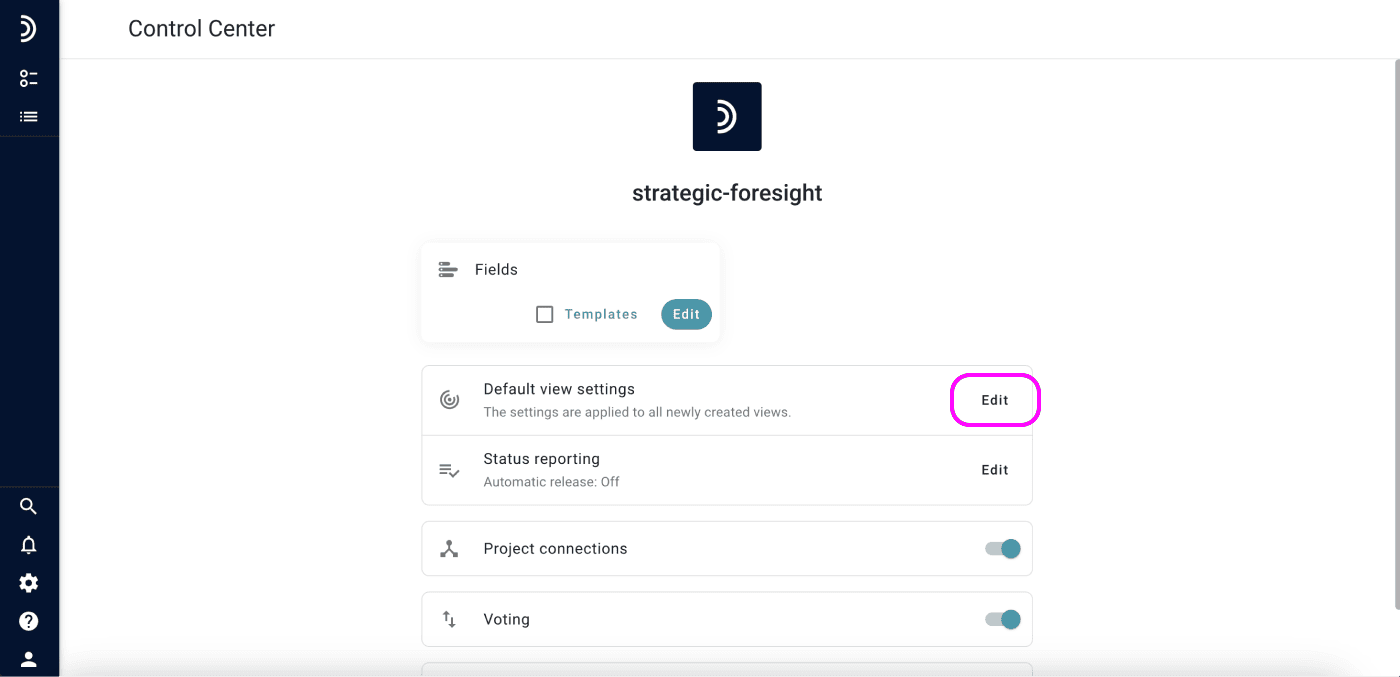
3. In the Report Layout section, add a new tab and select “Chat tab”.

4. Save the changes.

Sending Messages

To send a message, type it in the field at the bottom of the chat panel and click “Send”.
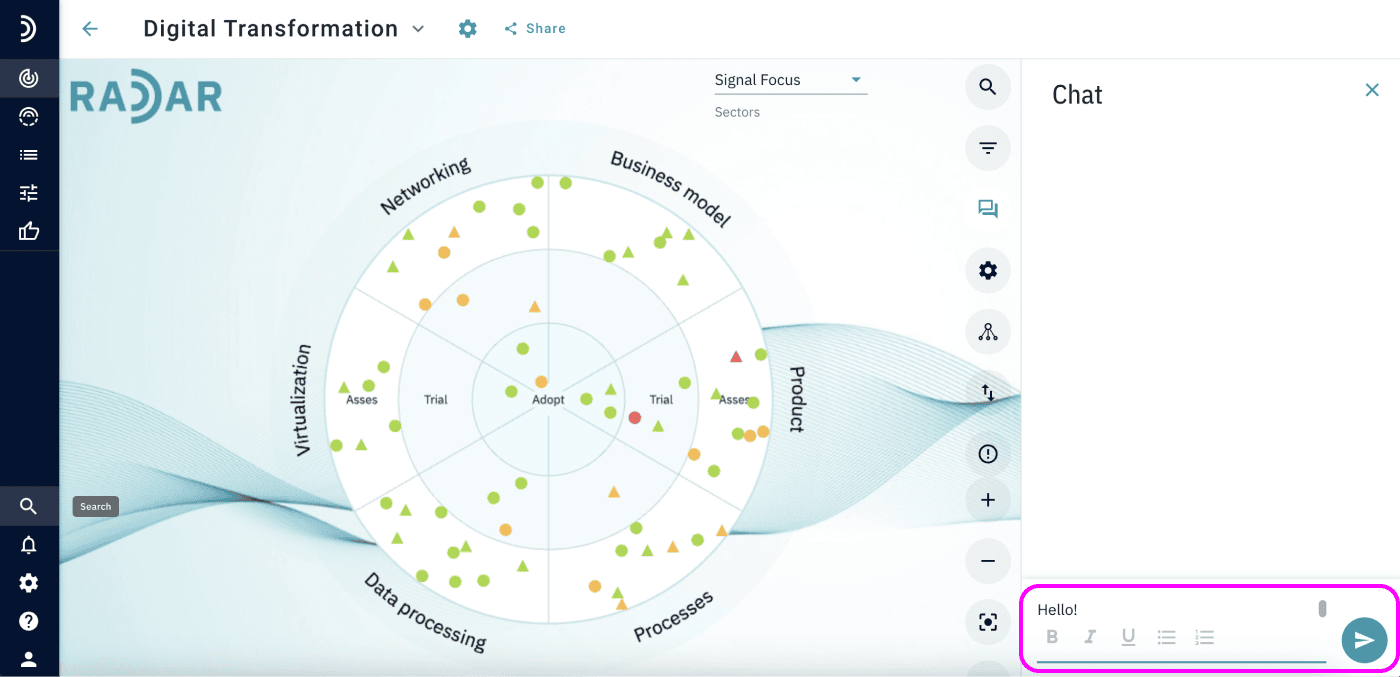
All users with access to the view or project will see the message. Users can also edit or delete their messages if needed. 
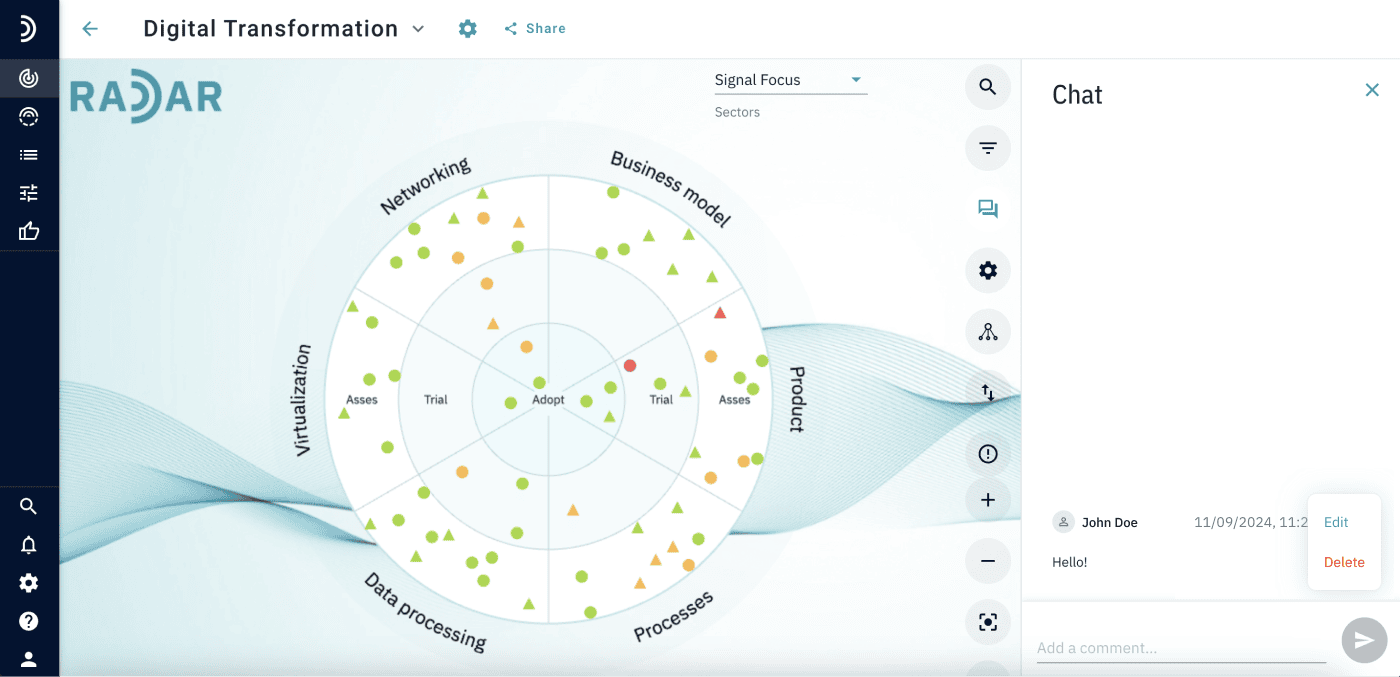
Note: All users with access to the view or project will receive notifications when new messages are posted. For more information about notifications, click (See How to use Notifications in Radar).

How to use notifications in Radar?
Projects Radar logo
  • Follow
  • Follow
  • Follow
  • Follow
  • Follow

PRODUCT

Status Reporting

KPI Radar

Strategic Foresight

Pricing

COMPANY

About us

Career

Contact us

RESOURCES

Blog

Product release

White paper

Help center

©2025. All Rights Reserved GET Information Technology GmbH | Rudolf-Diesel-Strasse 14, 41516 Grevenbroich, Germany

Terms of service      Privacy policy       Legal notice